HELP
Help & Contact
1. Enter parts
On Home, enter each part's name, width, length (mm) and count. Set Lock Grain for parts whose grain direction must not change. For lengths such as 2x4, set the type to Length and enter only the length.
2. Choose stock
- Pick a typical standard size (such as 910 x 1820 mm) or enter your own
- Enter offcut sizes and counts to use them before new stock
- Enter the blade kerf (3 mm by default) and edge trim. Match them to the store that cuts for you
3. See the cutting diagram
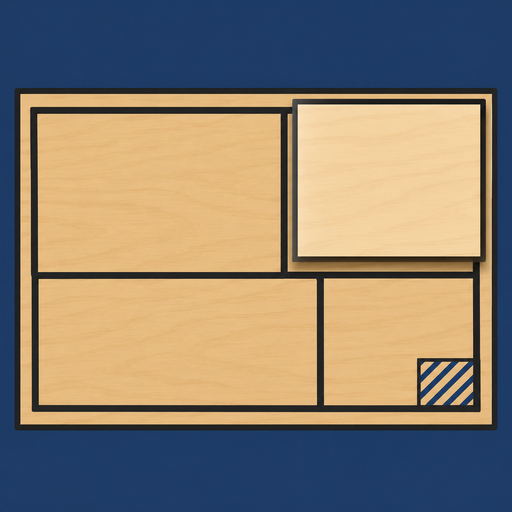
Tap Calculate to see the layout per board or length, numbered cut order and leftovers. Parts that don't fit are listed at the top with a reason (larger than the board, or blocked by grain direction).
4. Show the shop
Show to the Shop turns it into a large, high-contrast diagram, one board per page. Show it at the cutting desk as a PDF, image or printout.
5. Material and cutting costs
Enter stock prices and the price per cut to see the total from the number of boards and cuts. The app has no built-in prices; you enter them.
FAQ
Is this the layout with the least material?
It follows a fixed procedure, so anyone gets the same answer, but it isn't guaranteed to be the minimum. Changing counts or grain locks can change the layout.
The store said this layout can't be cut
Stores have different limits on sizes, number of cuts and kerf. Re-enter the kerf and edge trim to match the store.
Contact
ryo.tsuzukihashi@tsuzukit.com (Japanese or English)
 いたきり